Greenvelope, RSVPify, and Say I do are our three main picks for digital invitations with a built-in seating chart: on each, the guests who reply to the invitation are the same records you assign to tables, with no export step in between. Greenvelope is the recommendation for hosts who want a designed digital invitation, tracked replies, and table assignments inside one mailing; RSVPify fits events run like registrations; Say I do builds seating into a wedding planning suite. The comparison below shows how each connects the guest list to the tables, and a worked example walks through Greenvelope's version.
Which Invitation Platforms Include a Seating Chart Built From the RSVP Guest List?
Our three main picks connect the whole path from invitation to table assignment; Zola appears beside them as a clearly labeled wedding-website alternative.
| Platform |
Invitation and RSVP workflow |
Seating connection |
Assignment controls |
Access and limitations |
Best fit |
| Greenvelope |
Designed invitation by email, text, or shareable link; guests reply on the invitation, no account needed |
Built in: the Seating tool on the Track step works from the mailing's own guest list |
Floor plan with table size, shape, and position; automatic or manual assignment, with linked households kept together; table-level |
Part of the Track tools for an invitation mailing; assigns tables rather than individual seats |
The invitation, the replies, and the table plan in one place |
| RSVPify |
Branded email invitations and shareable links tied to registration-grade RSVP forms |
Built in: accepted guests queue automatically into the chart, which syncs with the guest list in real time |
Drag and drop to tables or exact seats, plus open seating sections; meal and dietary answers visible in the chart |
Seating chart included with paid plans, per its product FAQ |
Structured events that also need registration, ticketing, or check-in |
| Say I do |
Digital wedding invitations and save the dates sent to the guest list, with per-event online RSVP |
Built in: the Seating plan tool lists attendees beside your tables in the same account |
Add named tables with a set size, then drag guests onto each one |
Wedding-focused; regional package pricing on its public pricing page |
The wedding website, invitations, RSVP, and seating in one suite |
| Zola |
RSVPs collected on the couple's Zola wedding website; the stationery lineup is printed invitations and digital save the dates |
Confirmed guests pull automatically from the Zola guest list, already grouped |
Drag-and-drop floor plans with room features; guests can be dragged to specific seats; dietary and group tags |
iOS app only; no cost up to 15 guests, then a premium unlock; downloads as PDF or Excel |
Couples already planning on Zola whose guests RSVP through the wedding website |
How We Compared the Options
The shortlist test is one workflow: invitation, RSVPs, and table assignment on the same guest records. That excludes invitation tools that hand you a spreadsheet for a separate planner and design tools that make decorative seating posters with no tie to your RSVP records. Zola passes the guest-list half, since its chart pulls directly from its own confirmed guests, but its replies come through the wedding website rather than a digital invitation, so it appears as a labeled alternative rather than a fourth pick. These are use-case recommendations, not a census of the market.
One disclosure: Greenvelope publishes this comparison and appears in it. Competitor claims come from each platform's own product pages and help documentation, checked on September 28, 2026, and linked where made; where documentation leaves a question open, the guide says so rather than treating silence as absence.
The Three Main Picks in Detail
Greenvelope: Best for Designed Invitations With Built-In Table Planning
Greenvelope treats the seated event as one job. A designed invitation from an independent artist goes out by email, text, or shareable link, each reply lands on the invitation itself, and custom questions such as a meal choice attach to the guest who answers. Couples and families can be entered as linked households sharing one invitation link, which pays off at assignment time.
Once replies arrive, the Seating tool on the Track step covers the floor plan, table assignments, and a per-table review against the same guest list, with a Print control in the assignment view. Single mailings start at $19 for a guest list of up to 20 people, with pricing based on list size and no subscription required. For the wider field, see our comparison of the ten best digital invitation platforms.
RSVPify: Best for Seating Alongside Event Registration and Check-In
RSVPify comes at the workflow from event operations: registration, ticketing, and check-in software with a version for personal celebrations, whose invitations are branded email sends and shareable links attached to registration-grade RSVP forms.
Its seating chart is the deepest documented here. Per its seating chart maker page and help center overview, accepted guests queue automatically into an unseated area, the chart syncs with the guest list in real time, plus-ones and meal preferences included, and assignments run to a whole table or an individual seat, with open seating available. Charts and table lists export or print with table names, seat numbers, and guest details, and merge tags can email each attendee their assignment.
Say I do: Best for Digital Invitations Within a Wedding Planning Suite
Say I do keeps the whole wedding chain in one account: a website, designed digital save the dates and invitations sent to the guest list, per-event RSVP with custom questions, and a seating planner. Its seating help article shows the shape of the tool: open Seating plan from the main navigation, add tables with a name and size, and drag guests from the attendee list onto each one.
The suite is digital only, with no printed invitations, and for the venue handoff it downloads the attendee list with each attending guest's table number as a spreadsheet. Packages and pricing vary by region on its public pricing page, so confirm the package you choose includes the seating planner before building your list there.
The Wedding Website Route: Zola's Seating Chart
Zola closes the same guest-list loop from a different starting point. Its current stationery lineup centers on printed invitations and digital save the dates, with RSVPs collected on the couple's Zola wedding website, so the invitation half of the workflow is not a designed digital invitation like the picks above.
The seating half is directly connected. Per Zola's seating chart page, confirmed guests pull automatically from the Zola guest list, already grouped, and the floor plan handles table shapes, seat counts, and room features, with dietary and custom tags. Per Zola's help center, the chart runs only in the Zola iOS app, opens at no cost for up to 15 guests with a premium unlock for larger lists, supports dragging guests to specific seats, and downloads as a PDF or Excel sheet. Matching printed seating chart signs are a separate day-of product.
How Greenvelope's Seating Chart Works: A Worked Example
The dinner, guests, and table plan below are invented to show the workflow on a small demonstration list, not a complete venue plan. The interface screenshots are Greenvelope's official help center documentation, so the names in them are the documentation's own.
The Invitation
The walkthrough uses Gilded Place Setting by Laura Bolter Design, from Greenvelope's anniversary party collection: gold foil place setting pieces frame the wording, the design page calls it suitable for all types of dinners, and it offers six colorways with fully editable text. The choice is aesthetic; every mailing carries the same Track tools, so the seating chart does not depend on the design.
 Gilded Place Setting by Laura Bolter Design, shown with the template's sample wording. Image: Greenvelope.
The Example Event
The scenario is a couple's thirtieth anniversary dinner in a restaurant's private room: two tables of four seats each and eight invited guests, with Maya and Evan Patel entered as one explicitly linked household sharing a single invitation. The finished arrangement is the hosts' own illustrative choice, reached in the steps below.
| Guest |
RSVP status |
Assigned table |
| Maya Patel | Attending | Table 1 |
| Evan Patel | Attending | Table 1 |
| Lena Ortiz | Attending | Table 1 |
| Noah Brooks | Attending | Table 1 |
| Grace Chen | Attending | Table 2 |
| Theo Martin | Attending | Table 2 |
| Ava Reed | Declined | Not assigned |
| Ben Walker | Awaiting reply | Not assigned |
From Send to Seated, in Seven Steps
- Choose and personalize the invitation. Open Gilded Place Setting and edit the wording, fonts, colors, and envelope so the couple's names and dinner details replace the sample copy.
- Set up the guests and replies. On the Send step, add the eight guests. Maya and Evan go in through Add Contacts, then New Contact, then Couple or Family, which links them as one household with a shared invitation link and an optional household greeting, per Greenvelope's guide to grouping couples and families; the link is something you set, not inferred from a shared last name. Set the reply-by date and add any custom RSVP questions.
- Review replies on the Track step. Each reply updates that guest's status as it arrives; here the list settles at six attending, with Ava declined and Ben pending.
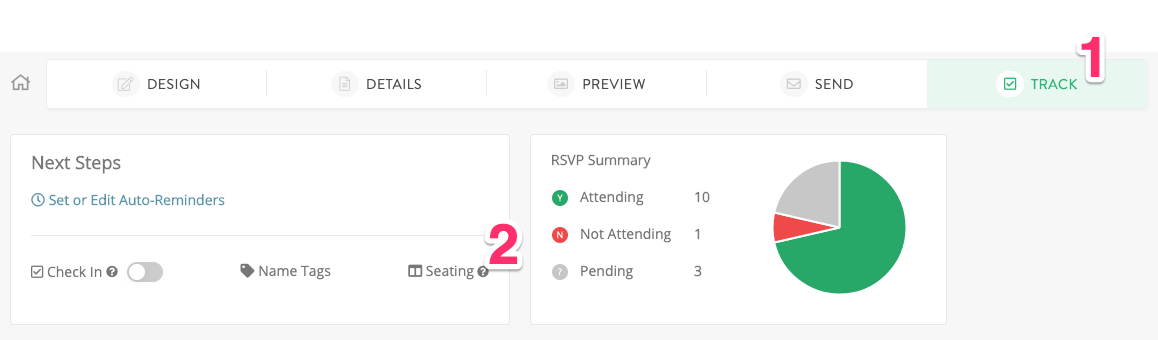 The Track step, where replies collect and the Seating tool opens. Image: Greenvelope Help Center.
- Open the seating tool. On the Track step, click Seating. It opens with Floor Plan, Assign Tables, and Assignments tabs you can move between.
- Build the floor plan. On the Floor Plan tab, add two tables, set four seats on each, choose the shapes, and position them to match the room.
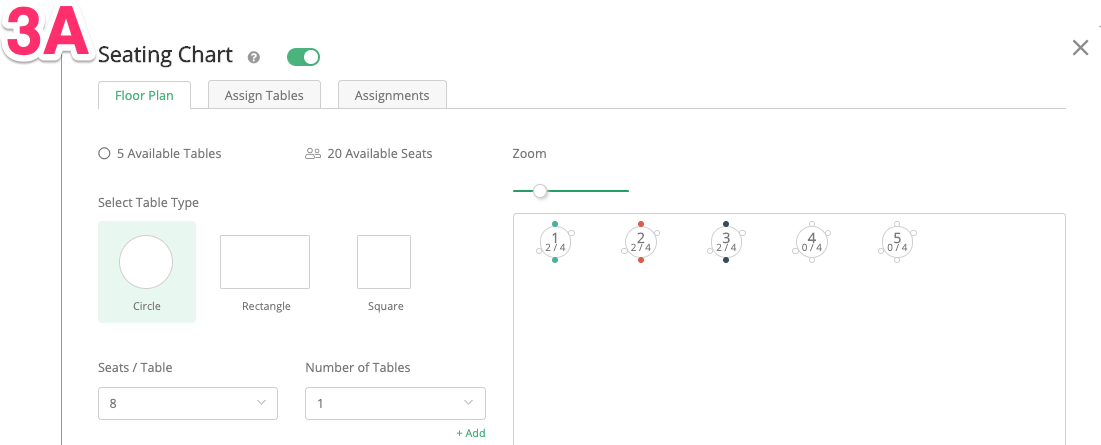 The Floor Plan tab, where tables are added, shaped, sized, and positioned. Image: Greenvelope Help Center.
- Assign the attending guests. On the Assign Tables tab, assign guests automatically or manually; automatic assignment keeps linked contacts together, so Maya and Evan share a table, and manual assignment can filter by company or tag. Here the hosts choose the arrangement in the table above, leaving two seats open at Table 2; Ava is not seated, and Ben stays unassigned while pending.
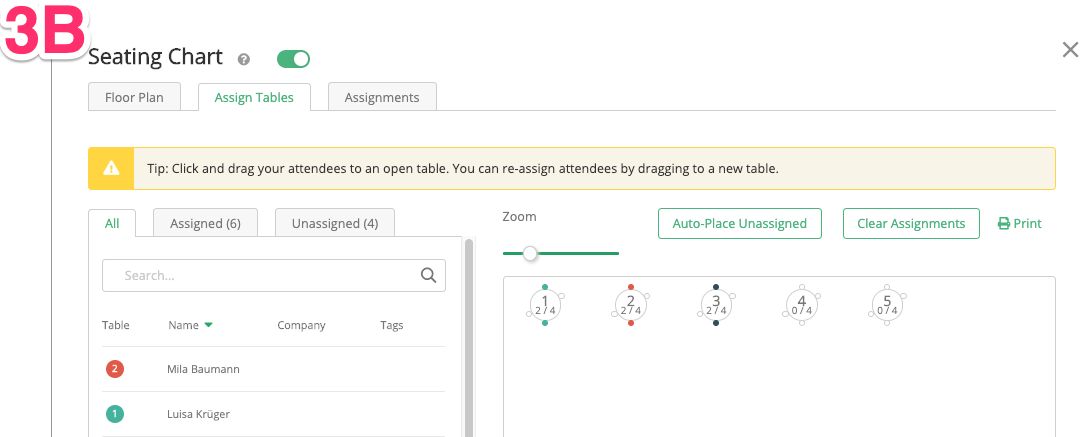 The Assign Tables tab, including its Print control. Image: Greenvelope Help Center.
- Review and adjust. The Assignments tab lists each table with its guests, and guests can be moved or removed in the same view. If Ben accepts, the hosts can assign him to an open seat at Table 2; after any RSVP change, review attendance and table assignments together before sharing the final plan with the venue.
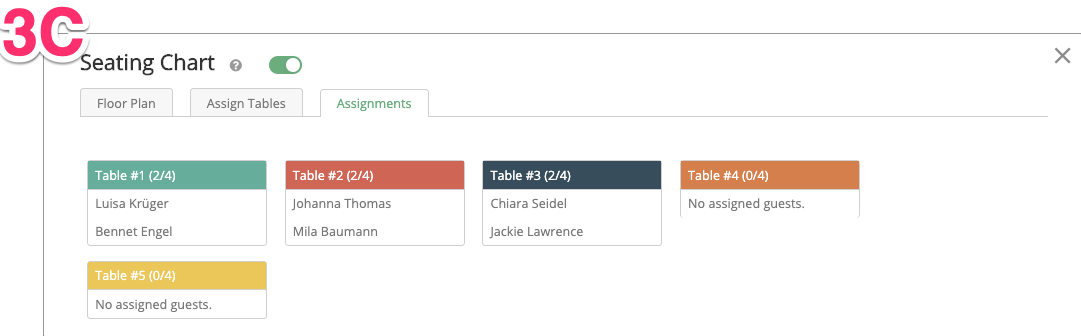 The Assignments tab, listing each table with the guests assigned to it. Image: Greenvelope Help Center.
What to Check Before Choosing
Product pages blur several distinct capabilities. A table assignment places a guest at a table; an exact seat assignment fixes the individual chair; a floor plan arranges the tables in the room; a decorative seating sign displays the finished result; and guest self-selection would let attendees pick their own places. A table-level tool still pairs well with place cards when you want to set individual chairs, and none of the documentation reviewed here describes guests choosing their own seats.
Ask what happens after an RSVP changes: a changed status reaching the guest list, that status showing in the seating tool, and a table assignment moving are different behaviors, and no platform here documents guests being reseated automatically. On any platform, review attendance and table assignments together before sharing the final plan with your venue.
Finally, check how the plan reaches the venue and caterer. RSVPify documents chart and table-list export and printing with table names, seat numbers, and guest details. Zola's chart downloads from its app as a PDF or Excel sheet. Say I do downloads its attendee list with table numbers as a spreadsheet. Greenvelope's seating tool includes a Print control in its assignment view, the Assignments tab shows the per-table list, and the guest list with reply statuses exports to Excel or CSV. Our guide to the best online RSVP tools for meal choices covers sending meal answers along with the plan.
Frequently Asked Questions
Which invitation platforms include a seating chart built from the RSVP guest list?
Greenvelope, RSVPify, and Say I do are the three main picks compared in this guide. Each includes a seating chart that works from the same guest list the RSVPs arrive in, so attending guests can be assigned to tables without exporting or re-entering names. Zola's connected seating chart pulls from wedding website RSVPs instead and runs in its iOS app.
Does Greenvelope have a built-in seating chart?
Yes. Greenvelope's seating chart is one of the Track tools that come with an invitation mailing: the Seating tool opens from the Track step with a Floor Plan tab for laying out tables, an Assign Tables tab for assigning guests automatically or manually, and an Assignments tab listing each table with its guests.
How do you create a seating chart from online RSVPs?
Send the invitation and collect replies on the same platform, then open its seating tool once responses arrive. On Greenvelope, that means opening Seating from the Track step, laying out tables and seat counts on the floor plan, and assigning attending guests automatically or by hand, with nothing exported or retyped.
Can couples and families be kept at the same table?
Yes. On Greenvelope, a couple or family is entered as one linked household sharing a single invitation link, and automatic table assignment keeps those linked contacts at the same table; the link is set when you add the contact, not inferred from a shared last name. RSVPify syncs groups into its chart, and Zola pulls guests in already grouped.
What is the difference between assigning a table and assigning an exact seat?
A table assignment places a guest at a specific table and lets them choose any chair there, which suits most dinners and still pairs with place cards. An exact seat assignment fixes the chair in the software, which matters for plated service tied to seat positions or protocol seating. A floor plan and a decorative seating sign are separate jobs: one shapes the room, the other displays the result.
Does a seating chart update automatically when someone changes their RSVP?
It depends on the platform. RSVPify documents its chart syncing with the guest list in real time; Zola describes rearranging guests easily after changes; Greenvelope and Say I do provide seating views for reviewing and editing assignments. A changed status reaching the guest list and a table assignment moving are separate steps worth a final joint review before the plan is shared.
Do all plans include access to seating charts?
No, access varies. RSVPify's product FAQ says its seating chart maker is included with paid plans. Zola's seating chart runs in its iOS app at no cost for up to 15 guests, with a premium unlock for larger lists. Say I do publishes regional packages on its public pricing page, so confirm the package you choose covers the seating planner. Greenvelope includes seating in the Track tools that come with an invitation mailing.
Can you print or export seating assignments for a venue?
Output options vary by platform. RSVPify exports or prints seating charts and table lists with table names, seat numbers, and guest details, and can email attendees their assignments. Zola's chart downloads as a PDF or Excel sheet from its iOS app. Say I do downloads its attendee list with table numbers as a spreadsheet. Greenvelope includes a Print control in its seating tool's assignment view and exports the guest list with reply statuses to Excel or CSV.
If the invitation-first version of this workflow fits your event, start with the invitation: browse Greenvelope's anniversary party invitation designs or all designs, customize and preview any design, and send a trial mailing to up to 10 people with no credit card required. The seating chart will be waiting on the Track step when replies come in.
Related Resources
Explore more guides in the Greenvelope resource hub: